Google Search Operators: 8 Copy-Paste Tricks That Work
Learn eight Google search operators with copy-paste examples to find manuals, check quotes and filter sites, plus the mistakes that break them.

You know the search: ten minutes of scrolling past shops and forum threads for a washing-machine manual that was a PDF the whole time. One operator, filetype:pdf, would have taken ten seconds.
These eight Google search operators turn a vague query into a precise one, and every example below is ready to copy and paste. I checked the syntax against Google's own help pages on October 11, 2026, and I flag the three operators its help page doesn't list. It's all everyday search, filtering what's already public.
Quick answer: Put the operator right before your search term with no space after the colon. The most useful Google search operators are quotation marks for exact phrases, site: for one website and filetype: for documents like PDFs. Combine them in one search to narrow results fast.

Before you start
Time: About ten minutes to try all eight, then seconds per search.
You need: Google Search in any browser. No account, no extensions.
One rule: Don't put a space between the operator and your term. Per Google's search help, [site:nytimes.com] works but [site: nytimes.com] doesn't.
How do you use Google search operators? 8 steps
I've shown each query in square brackets, as Google's help page does. Type what's inside the brackets, not the brackets themselves.
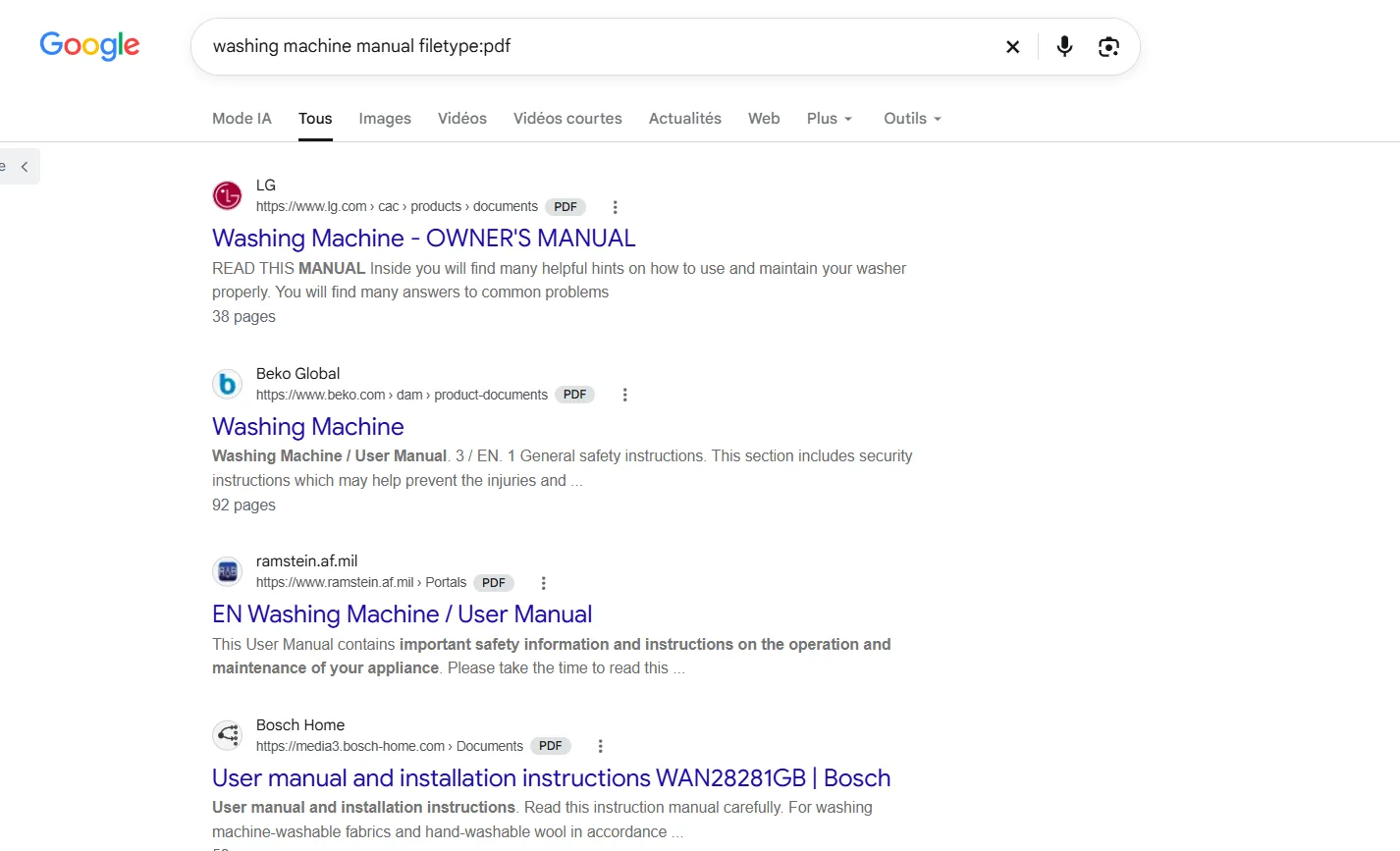
Step 1: Find a manual with filetype:
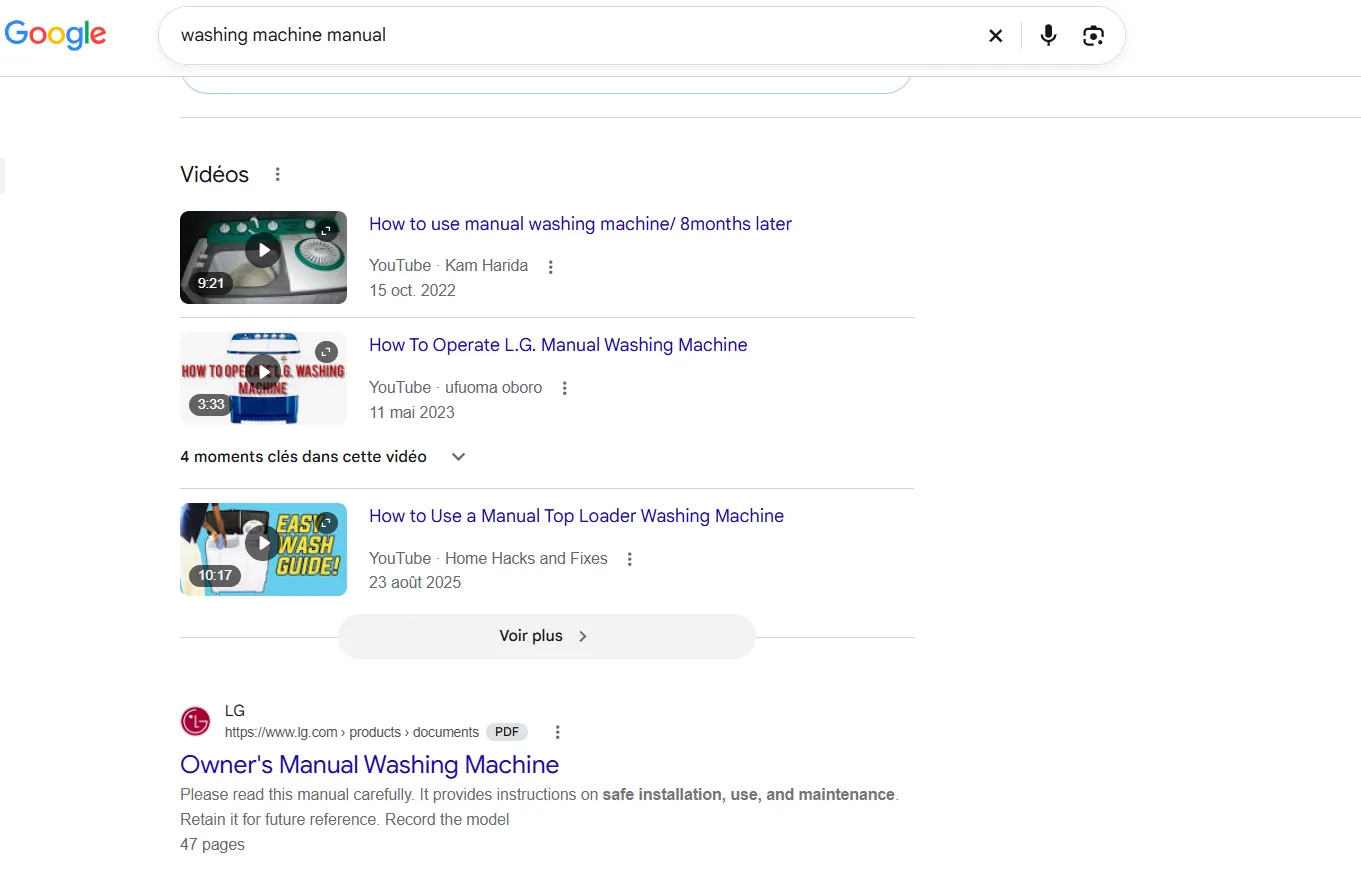
Before: [washing machine manual your model number]. Shops and forum threads usually crowd the top.
After: [washing machine manual your model number filetype:pdf]. Google limits results to PDFs.
The catch: It only finds file types Google indexes, and Google's Search Central documentation says the type comes from the file's extension or content-type header. If a manual sits behind a login, no operator will find it.
Step 2: Check a quote with quotation marks
Before: Seven distinctive words from the quote, typed plainly. Without quotes, those words can appear anywhere on a page.
After: ["distinctive phrase from the quote"] followed by the speaker's name outside the quotes. Google looks for the exact phrase.
The catch: Quotes get paraphrased. If you get no results, trim the phrase. A match shows where words appear, not that the attribution is right, so check the original source.
Step 3: Search one website with site:
Before: [memory saver chrome settings]. Blogs and videos mix in with Google's own help pages.
After: [site:support.google.com memory saver]. Only that domain's pages appear. It's handy for settings like the ones in our hidden Google features.
The catch: No space after the colon, as above. The operator works on a domain, a URL or a URL prefix.
Step 4: Drop the wrong meaning with a minus sign
Before: [jaguar speed]. You get animals and cars together.
After: [jaguar speed -car]. That's Google's own example for leaving out a word.
The catch: Put the minus directly in front of the word. Exclude one word at a time and check you haven't removed good pages.
Step 5: Skip outdated guides with before: and after:
Before: [router setup guide]. Old tutorials often sit next to current ones.
After: [router setup guide after:2025]. Add before: to set a range, for example [after:2019-03-01 before:2019-03-05].
The catch: Google says these find documents last updated in the range. That date isn't always the original publication date.

Step 6: Compare options with OR
Before: [laptop sleeve case waterproof]. Google looks for pages that match all your terms.
After: [laptop sleeve OR case waterproof]. Either word is enough. Type OR in capitals. A pipe symbol also works, per Google Power Search from O'Reilly.
The catch: Google's help page didn't list this one when I checked, so test it on a search you can sanity-check.
Step 7: Fill a blank with an asterisk
Before: You half remember a proverb and can't find it.
After: ["a penny * is a penny earned"]. The asterisk stands in for one unknown word. It works best inside quotes.
The catch: It isn't on Google's help page either, and a very vague phrase returns noise.
Step 8: Stay on budget with two dots
Before: [headphones under 100]. Prices are all over the place.
After: [headphones $50..$100]. Two dots between numbers match anything in that range. The same trick works for years and quantities.
The catch: Don't put spaces around the dots, and click through to confirm the price, because listings change.
What mistakes break Google search operators?
A space after the colon. It turns the operator into plain text.
Using cache:. Google has said it no longer works. For old versions of a page, try the Wayback Machine in our list of useful websites.
Stacking five operators at once. Add one at a time so you can tell which one helped.
Quoting a whole sentence. One wrong word and the match disappears.
Treating results as complete. Google notes operators are bound by indexing and retrieval limits, so some pages won't show.
What if a Google search operator doesn't work?
Remove every operator but one and test again.
Shorten any quoted phrase to its most distinctive words.
Try Advanced Search: enter your query, click Tools, then Advanced Search. On mobile, tap Search Tools.
Swap the file type or domain, for example from PDF to another format Google indexes.
If the page was deleted, look it up on the Wayback Machine instead.
Choose the right Google search operator
Choose filetype: if you're hunting for a manual, form or paper.
Choose quotation marks if you're checking a quote or a phrase.
Choose site: if a website's own search box is weak.
Choose two dots if you shop to a budget.
My take and next step
My pick: site: and filetype:, because Google documents both and they fix the two most common complaints: weak site search and results full of the wrong file type. Skip the asterisk unless you're hunting a half-remembered phrase.
Next step: run Step 1 on a manual you've lost. Then see our guide to free alternatives to paid software and the rest of the Internet Secrets & AI Tools hub.
Last checked: Google's official help and documentation pages on October 11, 2026. Operators change, so test any you rely on.
Frequently asked questions
Can I use search operators in Google Images or News?
Some are specific. Google's documentation says imagesize: and src: work only in Google Images, and the help page lists filters for News, Images and Videos under the search bar. Run your query on the All tab first, then switch filters if you need to.
Do search operators work on a phone?
You type the same text into the search box. Google's help page also notes that Advanced Search is reached through Search Tools on mobile. Watch for a stray space after a colon, which breaks the operator.
Is it safe and legal to use these operators?
They only filter pages Google has already indexed, so this is ordinary searching. Don't use them to dig for exposed private files. If you stumble on someone's private document, close it and tell the owner. This isn't legal advice.
Quiz
Google Search Secrets: 10 Quick Tricks to Find Anything
10 quick questions — think you know this one?
Test Your Knowledge →Comments (8)

Phoenix Wright
5 days ago
I enjoyed the article and found it easy to follow.

Florencia Caballero
6 days ago
I learned something useful today. Appreciate it!

William Johansen
6 days ago
I learned a few things I didn’t know before. 😊

مرسانا سهيلي راد
Oct 10, 2026
Thanks for sharing your insights with us.

Ege Taşlı
Oct 8, 2026
Very informative and nicely written.

Nair das Neves
Oct 5, 2026
This was surprisingly helpful. Thanks a lot!

Ali Babacan
Oct 3, 2026
Very interesting topic and a well-written article.

Anita Bergo
Sep 29, 2026
Very well written and easy to understand.