15 Hidden Google Features: Exact Click Paths Included
Find 15 hidden Google features and Chrome tricks with exact click paths, time saved and honest catches, all checked against Google's own help pages.

You've used Chrome for ten years. Then someone presses Ctrl+Shift+A, a search box finds the tab you've been scrolling past all day, and you wonder where that button has been hiding.
It's been there the whole time. These 15 hidden Google features and Chrome tricks each sit one click, shortcut or right-click away. Every click path below was checked against Google's own help pages on October 11, 2026. The "time saved" lines are rough, not benchmarks, because your tab habits are your own.
Quick answer: The best hidden Google and Chrome features are Tab Search (Ctrl+Shift+A), Memory Saver, saved tab groups, address-bar Actions and Copy link to highlight. Each is a click or shortcut away, and all are free. Menus change, so check the click path against your version.

Which hidden Google features are worth knowing?
The first two save the most time for the most people. The rest are ordered by how often they'll come up.
1. Tab Search and @tabs
Verdict: The fastest way to find one tab among thirty.
What it is: A search box for your open tabs.
How to use it: Press Ctrl+Shift+A (Cmd+Shift+A on a Mac), or click Tab Search in the tab strip. Or type @tabs in the address bar, press Tab or Space, then enter a keyword. Both are described in Chrome's tab help page.
Time saved: A few seconds every time you'd otherwise scroll the tab strip.
The catch: If you can't see the button, turn on Show tab search button under Settings and then Appearance.
Who it's for: Anyone who treats tabs like a to-do list.
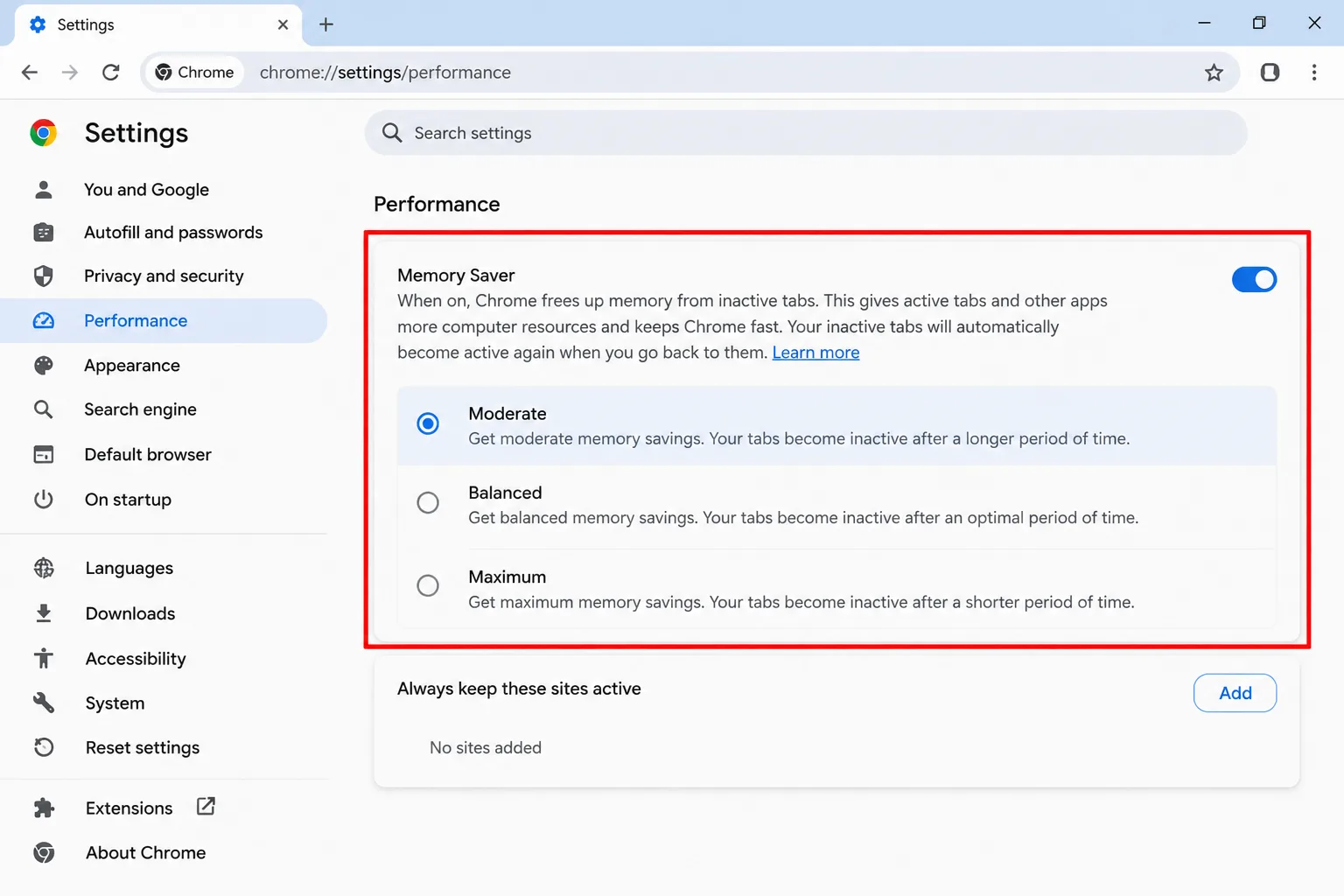
2. Memory Saver
Verdict: The cheapest fix for a sluggish browser.
What it is: Chrome deactivates tabs you aren't using to free memory. You pick a Moderate, Balanced or Maximum level, and hovering over a tab shows how much memory it's using. Energy Saver is its sibling: it works when your device is unplugged or the battery is low.
How to use it: More, then Settings, then Performance, then turn on Memory Saver.
Time saved: Fewer slowdowns when you've got many tabs open.
The catch: An inactive tab reloads when you return to it, and some computer activity can stop tabs from being deactivated. Energy Saver needs a device with a battery.
Who it's for: People with a lot of tabs and a modest laptop.
3. Saved tab groups
Verdict: A project folder that lives in your tab strip.
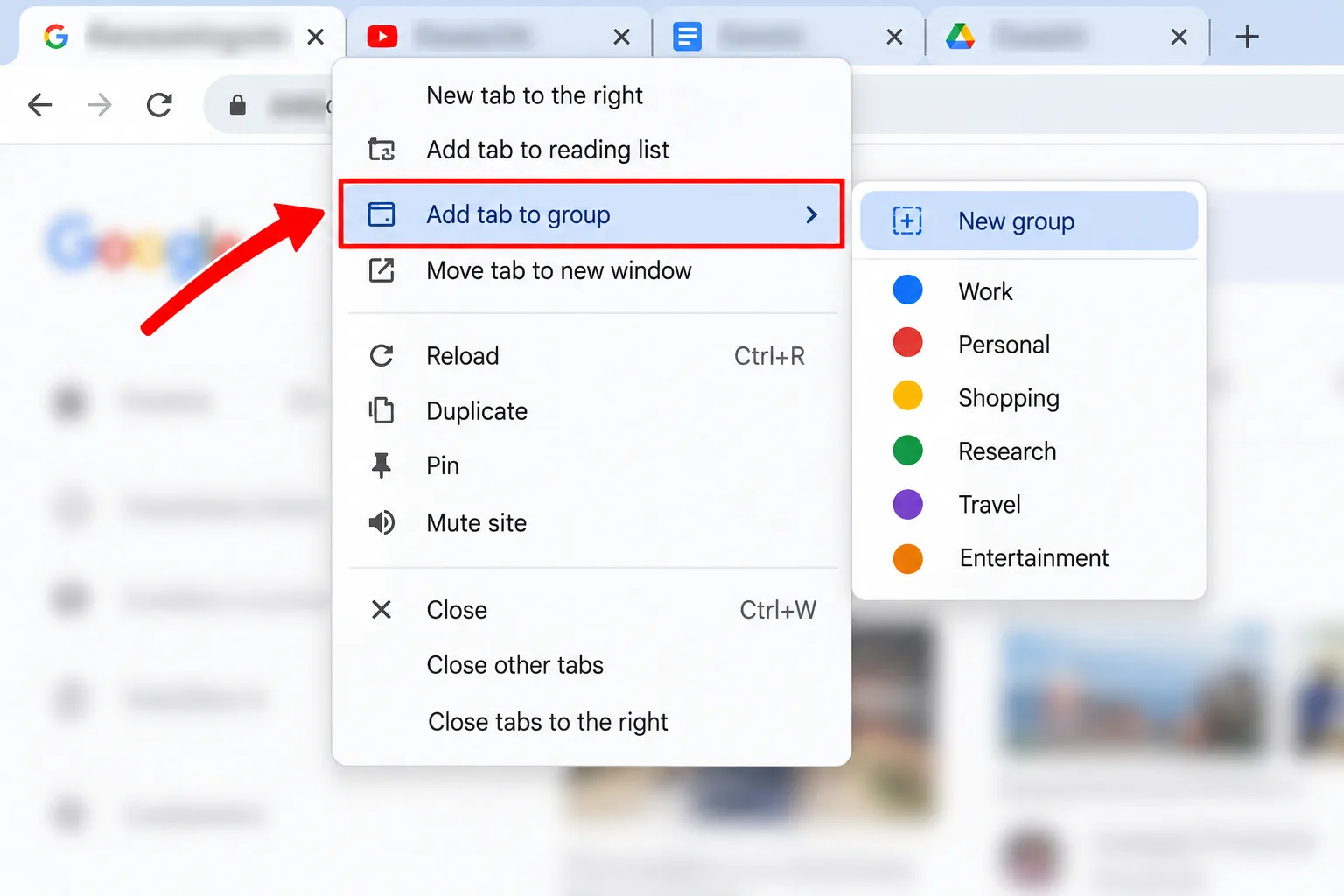
What it is: Named, colour-coded groups of tabs. When your browsing history and tabs are synced with your Google Account, changes to groups are automatically saved and synced across your devices.
How to use it: Right-click a tab, then Add tab to group, then New group. Click the coloured circle to name it and pick a colour. Reopen a closed group from More, then Tab groups.
Time saved: Minutes of rebuilding a work session.
The catch: Deleting or ungrouping a group removes it on your other devices too.
Who it's for: Anyone juggling projects, trips or research.
4. Chrome Actions in the address bar
Verdict: Settings without the menu hunt.
What it is: Type a task into the address bar and click the chip that appears under it.
How to use it: Try "delete history", "run safety check", "manage passwords", "translate this page" or "create Google doc". Then click the Action chip.
Time saved: The time you'd spend clicking through menus.
The catch: The chip appears only for matching phrases, and it takes you to the relevant settings page rather than making the change for you.
Who it's for: Anyone who can never remember where a setting lives.
5. Copy link to highlight
Verdict: Send someone to the exact sentence, not the whole article.
What it is: A shareable link that opens a page with specific text highlighted.
How to use it: Highlight the text, right-click it, then select Copy link to highlight. Paste it anywhere.
Time saved: Ends the "scroll to the third paragraph" message.
The catch: It may not work for some content. To remove the highlight, right-click it and select Remove highlight.
Who it's for: Researchers and anyone sharing articles.
6. Chrome's Task Manager
Verdict: Find the tab hogging your laptop and end it.
What it is: A list of pages and extensions that you can force closed.
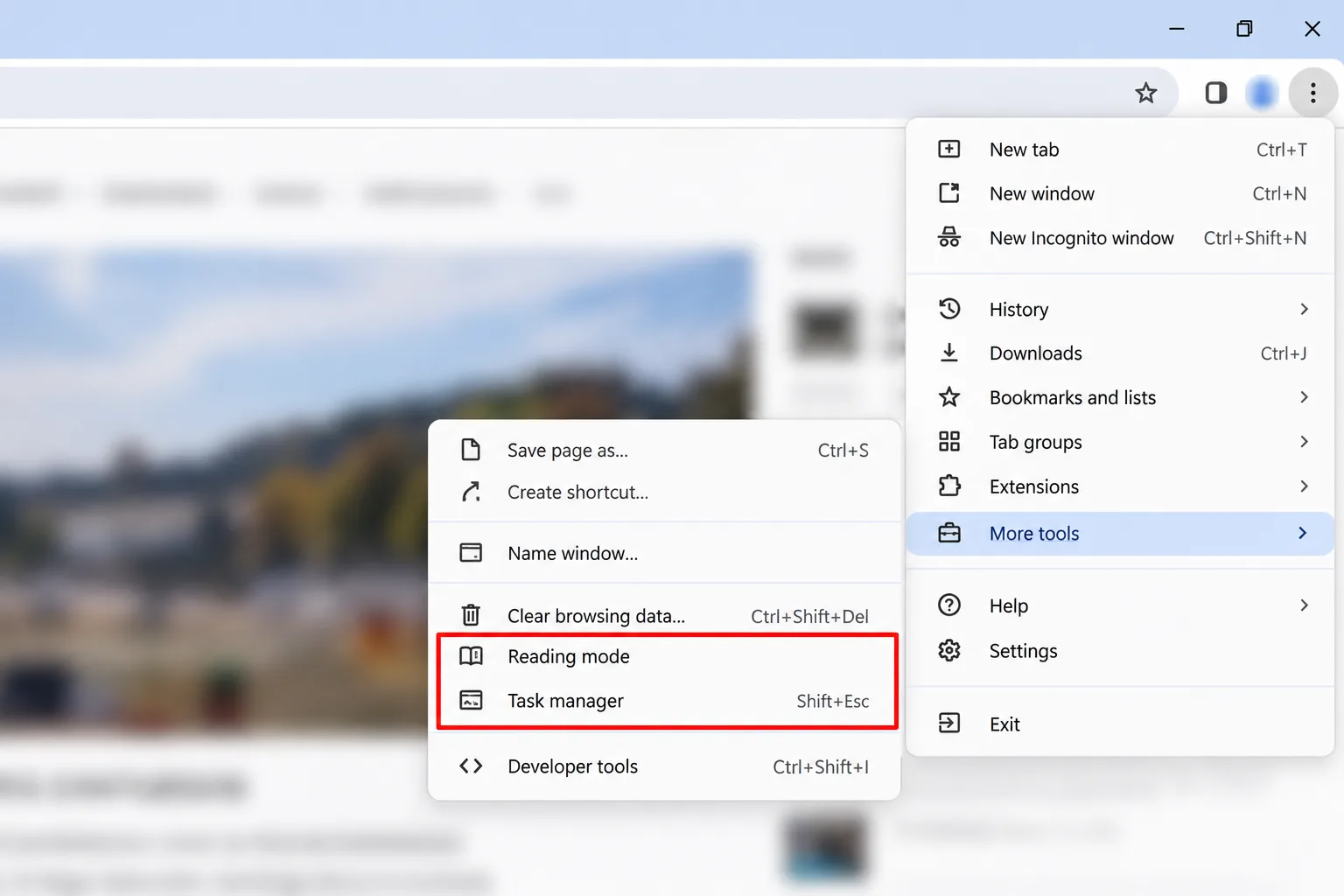
How to use it: Press Shift+Esc on Windows or Linux, or go to More, then More tools, then Task manager. Select the page or extension and click End process. Mac users should use the menu route.
Time saved: Saves restarting Chrome when one tab freezes.
The catch: Ending a tab's process closes it, so any unsaved work in that tab is lost.
Who it's for: Anyone with a frozen tab or a hot laptop.
7. Site search shortcuts
Verdict: Search a site from the address bar without opening it first.
What it is: Type a search engine's name or shortcut and press Tab, then search. Chrome's built-in shortcuts for open tabs, bookmarks and history can be edited or turned off but not deleted.
How to use it: To add your own, go to More, then Settings, then Search engine, then Manage search engines and site search, then Add. Enter a name, a shortcut, and the site's results-page address with %s where the query goes.
Time saved: One page load per search.
The catch: You need the address of the site's results page. A Chrome feature may also be unavailable if your search engine doesn't support it.
Who it's for: People who search the same few sites all day.
8. Search this tab with Google Lens
Verdict: Ask a question about the page you're on.
What it is: A side panel where you can select anything on a page to search it, or ask a question about the page's content. Follow-up questions lead to AI Mode. See our guide to Gemini in Chrome for the other AI features.
How to use it: More, then Search this tab with Google Lens. You can also right-click a page or an image and choose Search with Google Lens. Google needs to be your default search engine.
Time saved: Skips copying text into a new search.
The catch: Google's help page says a screenshot of the page and page data are sent to Google when you use it. Avoid it on pages showing private information.
Who it's for: Shoppers and curious readers.
9. Reading mode
Verdict: Strips a page down to the text.
What it is: A side-panel reader with your choice of font, size, spacing and background colour.
How to use it: More, then More tools, then Reading mode. Pin it from the side panel if you'll use it a lot.
Time saved: Less scrolling past clutter on a long read.
The catch: Your settings apply only to the text in the side panel, not to other sites.
Who it's for: Long-article readers and anyone who finds busy pages tiring.
10. Live Caption
Verdict: Captions for almost any audio in Chrome.
What it is: Automatic captions for videos, podcasts, live streams and video calls.
How to use it: More, then Settings, then Accessibility, then turn on Live Caption.
Time saved: Lets you follow a video with the sound off.
The catch: Live Translate is a separate toggle, and Google's help page describes sending captions to Google for translation. Read it before turning that on.
Who it's for: Anyone in a noisy or quiet place, and anyone who relies on captions.
11. Bookmark all tabs
Verdict: Save a whole research session in one keystroke.
What it is: All open tabs saved into a new bookmarks folder.
How to use it: Press Ctrl+Shift+D (Cmd+Shift+D on a Mac), or go to More, then Bookmarks, then Bookmark All Tabs.
Time saved: The time to bookmark each tab one by one.
The catch: A folder isn't a live session, and it piles up if you never tidy it.
Who it's for: Anyone closing a messy session they'll want later.

12. Mute site
Verdict: Silence the noisy tab without hunting for it.
What it is: A mute that applies to the site across every tab it's open in.
How to use it: Right-click the tab and select Mute site, as Google's Chrome tips page explains.
Time saved: Seconds of hunting for the tab that's playing.
The catch: It mutes the whole site until you unmute it.
Who it's for: Anyone with autoplay video somewhere in a pile of tabs.
13. Picture-in-picture
Verdict: Keep a video on top while you work.
What it is: A small floating video window with a limited set of controls.
How to use it: Play a video, click the Media Controls icon near your profile picture, then click the Enter picture-in-picture icon.
Time saved: No tab-switching to follow a talk or tutorial.
The catch: The window is small and the controls are limited to the basics.
Who it's for: Multitaskers and anyone following along with a tutorial.
14. Results about you
Verdict: Find and remove your contact details from Google Search.
What it is: You add your name and contact info, and Google checks Search for matches. With notifications on, it tells you within a few hours if it finds any.
How to use it: Open Google's Results about you page, enter your details, then on a result showing your contact info, select Remove result.
Time saved: Replaces searching for yourself by hand.
The catch: Removing a result from Search doesn't remove it from the internet, so you may still need to contact the website owner. The details must be your personal contact info, and Google decides whether to approve the request.
Who it's for: Anyone who'd rather their address wasn't a search away.
15. Password check
Verdict: A one-minute audit of every saved password.
What it is: Chrome checks your saved passwords and tells you if any were exposed in a data breach. Google also said in a December 2023 update that Safety Check runs automatically in the background on desktop.
How to use it: More, then Passwords and autofill, then Google Password Manager. Turn on Warn you if passwords are exposed in a data breach.
Time saved: A minute instead of checking each account.
The catch: Enhanced protection (Settings, then Privacy and security, then Security) also warns about compromised passwords, but it sends the URL and a small sample of page content to Google. Standard protection is the default.
Who it's for: Anyone who has reused a password.
Choose Tab Search and Memory Saver if tabs are your problem. Choose Reading mode and Live Caption if you read or watch a lot. Choose Results about you and the password check if privacy is the priority.
My take and next step
You don't need all of these. My pick: Tab Search, Memory Saver and Chrome Actions, because they pay off every day. Skip this if you rarely have more than a few tabs open.
Next step: try three today, then explore the rest of Google with our guide to Google search operators and our list of useful websites. More tricks live in the Internet Secrets & AI Tools hub.
Click paths and help pages checked on October 11, 2026. Chrome and Google change menus often, so if a label differs, search the feature's name in Chrome's Settings.
Frequently asked questions
Do these hidden Chrome features work on a phone?
Some do. On Android you can search tabs from the tab switcher, and tab groups sync across devices when you're signed in to the same Google Account. Others, such as Task Manager, are desktop features. Check Chrome Help for your device.
Why can't I see a feature that's listed here?
Chrome rolls out features gradually, and some settings are managed by an administrator on work or school computers. Update Chrome first: typing "update browser" into the address bar opens the About Chrome page.
Where can I see Chrome's full list of shortcuts?
Google publishes a full list on its Chrome keyboard shortcuts help page. You can also type "Chrome features" into the address bar and click the Action chip, which opens Google's page of Chrome tips and shortcuts.
Quiz
10 Hidden Google Features You Should Know!
10 quick questions — think you know this one?
Test Your Knowledge →Comments (5)

Mary Larson
Oct 9, 2026
Really appreciate the time and effort behind this article.

Norman Duncan
Sep 20, 2026
Keep publishing articles like this. They’re really useful.

Aada Laitinen
Sep 14, 2026
Very interesting topic and a well-written article.

Johnny Harrison
Sep 13, 2026
I found this post useful and informative.

Hélèna Perez
Sep 10, 2026
Great content as always!