
Link Preview Shows the Wrong Image: Fix og:image
og:image checker: validate the Open Graph and Twitter tags, compare the preview cards, find relative image URLs, check size and ratio and clear the platform caches after a fix.
When a shared link shows no image, or the wrong one, on Facebook, X, LinkedIn or WhatsApp, the cause is almost always in the meta tags of the page. An og:image checker reads those tags and shows what each platform will most likely display. The OpenGraph & Meta Tag Validator fetches the page, lists the tags, previews the cards and points out the faults that break previews.
Steps: Validate tags and read the previews
- Open the OpenGraph & Meta Tag Validator.
- Enter the full address of the page, for example
https://nodejs.org/en. - Press Validate tags.
- Read the list of tags, the warnings and the preview cards.
The result shows the Open Graph tags, such as og:title, og:description and og:image, the Twitter tags, and the preview cards for several platforms. The Open Graph protocol is described at ogp.me.
On 6 November 2026, the result for https://nodejs.org/en showed an og:image of 1200×600 pixels, a PNG file of 125 KB, and the tool said: "The image is 1200×600 (ratio 2.00:1), right for large previews." This is a good size: large enough for a big card, and small enough to load quickly. The summary line read "0 thing(s) to fix and 1 to improve".
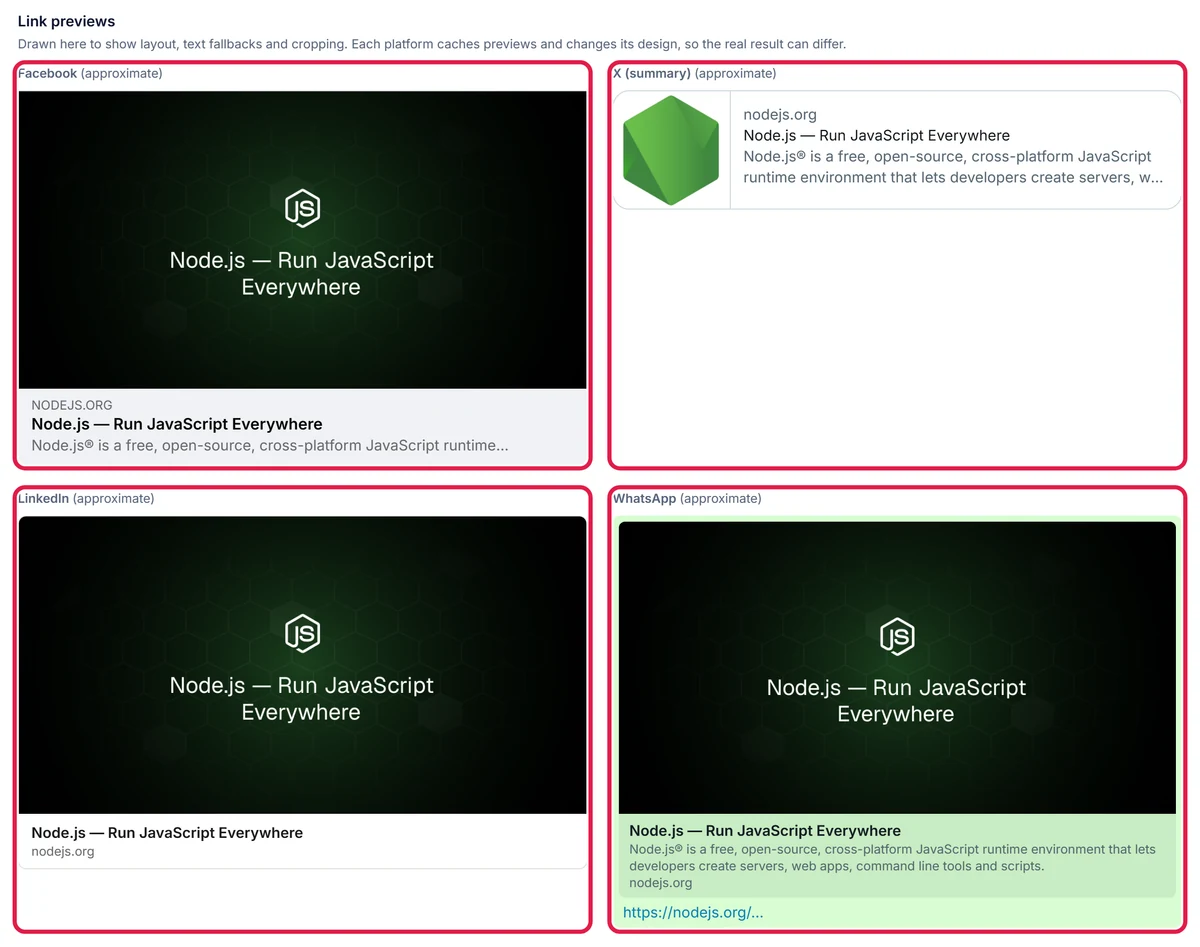
Remember that the previews are an approximation. Each platform has its own rules and changes them over time, so the cards in the tool show what is likely and not a guarantee. Use them to find faults, and confirm in the platform's own tool.
Different images for X and Facebook
Platforms do not use the same tags. Facebook and LinkedIn read the Open Graph tags. X reads its own twitter: tags first, and falls back to the Open Graph tags where a twitter: tag is missing.
So a page can have two different preview images if og:image and twitter:image point to different files. The validator shows this: the X card can show a different image from the Facebook card.
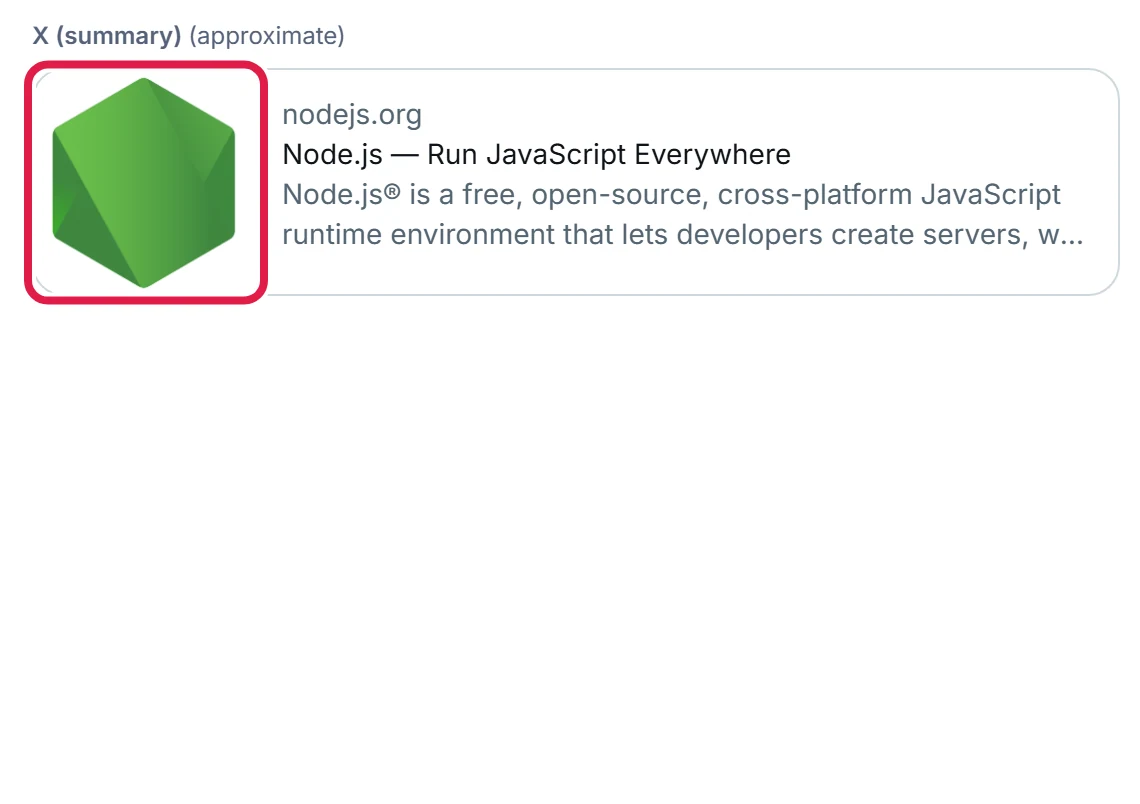
In the nodejs.org example, the twitter:card has the value summary, and twitter:image points to a different file, https://nodejs.org/static/images/logo-hexagon-card.png, while og:image is a generated announcement image. The checker notes: "twitter:image differs from og:image, so X shows a different picture than Facebook and LinkedIn." The summary card is a small card with a square image next to the text. It is different from the large card, which has a wide image above the text. If you want the large card, use the value summary_large_image, as described in twitter:card large_image Is Not a Valid Type.
Decide whether you want one image or two. In most cases one image in og:image is enough, and the Twitter tags can be limited to twitter:card. The markup of the cards is documented by X in its cards markup reference.
Relative image URLs
A frequent cause of a missing image is a relative URL in og:image, such as /img/thumb.gif. A crawler that reads the page does not always resolve it against the page address in the way a browser does, and some platforms ignore it.
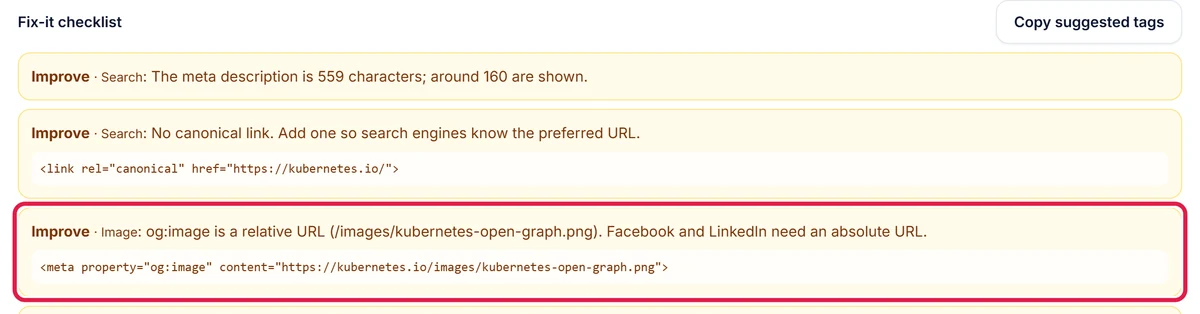
The validator resolves relative URLs so that you can see the image, but it also reports that the URL should be absolute. On kubernetes.io, og:image is /images/kubernetes-open-graph.png, and the Fix-it checklist says: "Improve · Image: og:image is a relative URL (/images/kubernetes-open-graph.png). Facebook and LinkedIn need an absolute URL." It also gives the corrected tag, and the button Copy suggested tags copies all the suggestions. The same result notes that the image ratio is 4.63:1, not 1.91:1, so that large previews crop it.
The fix is to write the full address with the scheme and the host, for example https://www.example.com/img/thumb.gif. Use HTTPS, and make sure the file is public. An image behind a login or blocked by robots.txt cannot be fetched by the platform's crawler. Check this with the Robots.txt Tester & Sitemap Validator and look at the response headers of the image with the HTTP Response Header Analyzer.
Image size, ratio and file size
The image must be big enough and in a good shape. A wide image with a ratio of about 1.91 to 1 works as a large card on most platforms. Very small images are shown as small cards or not at all. Very large files are slow, and a platform may skip an image that takes too long to load.
Keep the file small, use a common format such as PNG or JPEG, and avoid animated GIFs for the preview. The details of dimensions are in og:image Size: Dimensions, Ratio and File Size.
Put important content in the centre of the image, because platforms crop it differently, and keep text large enough to read on a phone.
Cached previews
After you fix the tags, the old preview may still appear. Platforms cache previews, sometimes for days. The new image will not show until the cache expires or you ask the platform to fetch the page again.
Most platforms have a tool for this. Facebook has the Sharing Debugger, and LinkedIn has the Post Inspector. Enter the address, and fetch it again. Messaging apps such as WhatsApp keep their own cache, and it is harder to clear; a changed URL, for example with a query string, can help.
Do not conclude that the fix failed before you have cleared the cache. Check the tags in the validator first, because it reads the current page and not a cached copy. For a launch checklist that includes meta tags, see Pre-Launch Website Checklist: Technical Checks.
Try it
Open the OpenGraph & Meta Tag Validator, enter the page address and press Validate tags. Compare the cards, make og:image an absolute HTTPS address, check the size of the image, and ask each platform to fetch the page again.