Circle to Search: 9 Uses, the Exact Gesture and When It Fails
Circle to Search does more than identify products. See 9 uses with the exact gesture, device limits and when each one fails, checked on 14 October 2026.

You've done it a thousand times. Screenshot, switch app, paste, search, switch back. One gesture replaces the whole routine.
That's Circle to Search, and this guide gives you nine ways to use it, each with the exact gesture, a device label and a note on when it fails. I haven't run these on a phone for this piece. I read Google's, Samsung's and Android's own pages on 14 October 2026, and features here change often, so check yours.
Quick answer: Circle to Search lets you search anything on an Android screen. Long-press the Home button or navigation handle, then circle, highlight, scribble or tap. Top uses are looking up items, translating a screen, naming songs and checking scam texts. Features vary by device and country, and iPhone gets a Lens-based alternative.

How do you use Circle to Search?
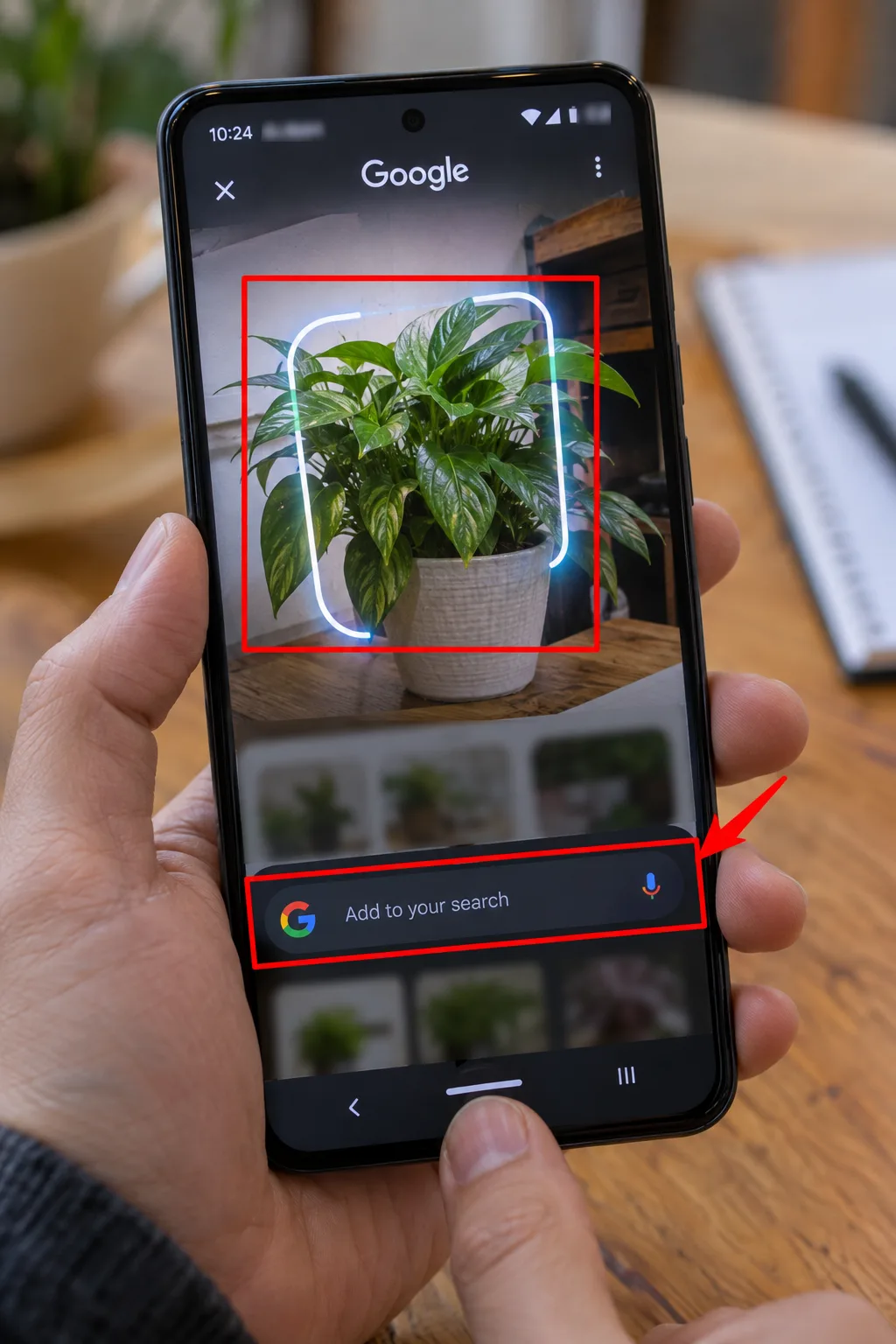
Google's help page says to touch and hold the Home button or navigation handle, then circle, highlight, scribble or tap what you want to search. A search bar and a gradient glow appear, and results show in the lower half of the screen.
- Adjust it: drag the selection borders. If the search bar blocks the view, use a two-finger pan or drag the bar up or down.
- Refine it: type extra words in the search bar to add to the search.
- Exit: swipe down, use the back gesture or tap X at the top left.
The catch: it's on "select" Android phones. Google's help says that includes Pixel 6 and later, and Samsung's page says select Galaxy phones and tablets running Android 14 with One UI 6.1 or higher. It also needs an internet connection.
9 things Circle to Search can do
1. Search anything on your screen
- Verdict: the core trick, and the one that replaces the screenshot routine.
- What it is: a search on whatever is in front of you, such as a product in a video, a plant in a post or a phrase in a message.
- How to use it: long-press the Home button or navigation handle, then circle, tap or scribble the item. For text, highlight the words. Google's older how-to article says you can highlight text in a message and copy it, but the current help page doesn't mention copying, so test it on your phone.
- Availability: select Android phones, including Pixel 6 and later and Galaxy phones with One UI 6.1 or higher.
- The catch: Samsung says it doesn't work in apps that block screen capture.
- Best for: anyone who keeps screenshotting things to look them up.
2. Translate a whole screen
- Verdict: the best travel-and-social trick, with no app switch.
- What it is: a translation of every bit of text on the screen. Google's Android page says it detects the source language and translates into your default system language.
- How to use it: long-press, then tap Translate next to the search bar. To keep translating as you scroll, choose "Scroll and translate".
- Availability: select Android phones. Google's September 2025 post said scroll-and-translate was rolling out, starting with select Samsung Galaxy devices.
- The catch: Google says it works on web pages, messages and social media, but not on videos or GIFs. The pages I read don't list supported languages.
- Best for: reading foreign menus, posts and group chats.

3. Name a song
- Verdict: handy for videos where nobody tells you the track.
- What it is: Google's Android page says you can search for songs playing on your device and around you.
- How to use it: long-press, then tap the musical note, as Google's Lens-versus-Circle guide describes.
- Availability: the page says song search "may vary by country and device".
- The catch: it won't identify a song if the phone volume is off. The current help page doesn't describe the music button, so yours may differ.
- Best for: finding the music in a clip you're watching.
4. Check a suspicious message
- Verdict: a quick second opinion before you tap a link.
- What it is: Google's December 2025 post says you can circle suspicious text and get an assessment of whether the message is likely a scam, with next steps.
- How to use it: long-press and circle the message text. On an iPhone, screenshot the message and use Lens in the Google app.
- Availability: the post says it's available globally in Circle to Search and Lens.
- The catch: results appear only when Google has "high confidence", so some messages get none. Treat it as a hint, not a verdict.
- Best for: texts that ask for payment or a link click.
5. Find the look
- Verdict: useful for outfits in photos and videos.
- What it is: circle a full outfit to get matches for each piece.
- How to use it: long-press, circle the outfit, then tap "Find the look". If the button doesn't show, type "find the look" in the search bar.
- Availability: Pixel 10 and 11 series, plus devices that support AI Mode and AI Overviews, per Google's help.
- The catch: it works best when the clothing is clearly visible. Layered or partly covered outfits are less reliable.
- Best for: shoppers chasing a look from a photo.
6. Try clothes on
- Verdict: a niche feature with strict conditions.
- What it is: a virtual try-on of eligible clothing, shown from the results.
- How to use it: circle a clothing item, then tap "Try it on" in the results.
- Availability: Google's help lists Australia, Canada, India, Japan, the UK and the US. You must be signed in, be 18 or older and have Web & App Activity and Search personalization turned on.
- The catch: lingerie, swimwear and accessories aren't supported, and shopping ads don't show the button.
- Best for: shoppers who are comfortable with the privacy settings it needs.
7. Search several things at once
- Verdict: the newest of the nine, and still limited by device.
- What it is: Google's February 2026 post says you can explore multiple objects in an image at once, such as each piece of an outfit or several fish in one photo.
- How to use it: long-press and circle a group of items, then ask one question about them.
- Availability: the post named the Galaxy S26 lineup and Pixel 10 phones, with more Android devices "soon".
- The catch: if your phone isn't on that list, you may only see single-item search.
- Best for: comparing items in one photo.
8. Ask follow-up questions with AI Mode
- Verdict: turns a quick lookup into a conversation.
- What it is: follow-up questions on a result. Google's July 2025 post says to scroll to the bottom of an AI Overview and tap "dive deeper with AI Mode". Samsung's page says to swipe up and tap AI mode.
- How to use it: run a search, then tap the AI Mode option.
- Availability: that post said the US and India, so confirm yours.
- The catch: AI Overviews don't appear for every search. Google's own pages advise checking answers for accuracy.
- Best for: topics that need more than a one-line answer.
9. Check whether a photo was edited
- Verdict: a small trust check on photos that look too good.
- What it is: Google's help says automatic detection can show whether a photo is original or modified.
- How to use it: long-press, then select the photo. The indicator appears when available.
- Availability: select Android phones.
- The catch: Google says it may not work in banking, medical or other confidential apps. Absent doesn't mean the photo is genuine.
- Best for: photos shared in news and social feeds.
Circle to Search vs Google Lens: which should you use?
Google's Android guide says Lens searches the world around you through the camera or an image, while Circle to Search works on what's already on your screen. Circle to Search is a quick way into Lens.
- Choose Circle to Search if the thing is already on your phone screen.
- Choose Lens if you're pointing a camera at a real object, sign or barcode.
- Choose Lens for detailed product hunts, since Google's guide calls it best for comprehensive visual searches.
Does Circle to Search work on iPhone?
No. Google's Android page says iPhone users don't get Circle to Search, but there's a similar Lens feature in the Google and Chrome apps. In Chrome, Google's help page says to tap the Lens icon in the address bar or use the More menu, and to set Google as your default search engine.
The catch: Chrome's page says a screenshot and page data go to Google for processing. That's the same trade-off as any visual search, so read the privacy note first.
Why isn't Circle to Search working?
- Check your phone is on the list. Samsung's page says One UI 6.1 or higher on Android 14, and Google's says Pixel 6 and later.
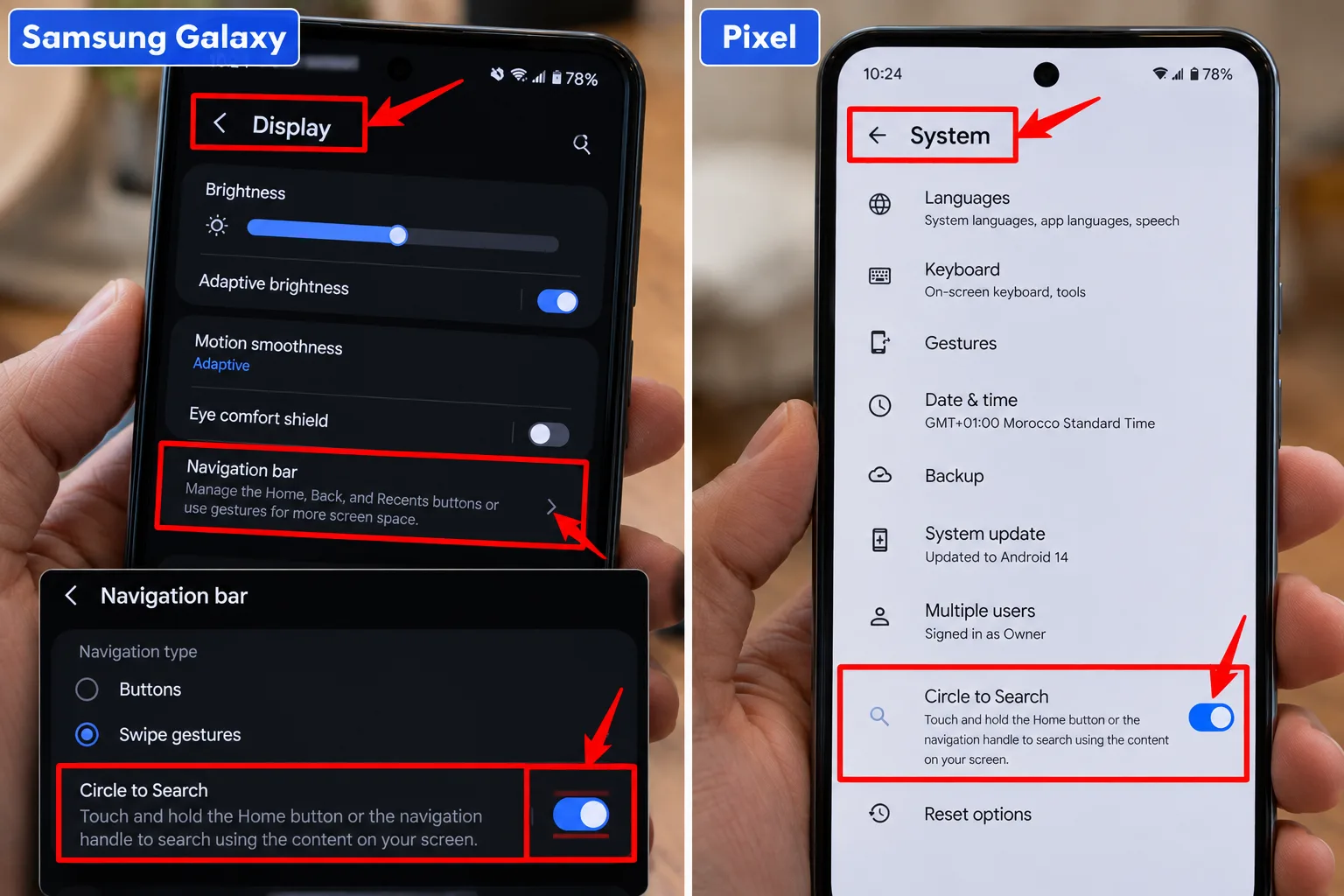
- Check it's on. On a Samsung phone, Samsung says the toggle is under Settings, Display, then Navigation bar. On a Pixel, Google says the setting is under Settings, then System.
- If you see "Screen search isn't available", set Google as the Digital assistant app under Settings, Apps, Default apps, and turn on "Use screen and app data".
- Update the Google app in Google Play.
- Try another app. It doesn't work where apps block screen capture.
My take and next step
For a feature that takes one gesture, circle to search covers a lot. My pick: translate and scam checking, because both save a trip to another app and a bad click. Skip this if: you're on an iPhone and only need a quick image lookup, since Lens in Chrome does that job.
Next step: long-press your Home button or handle on a page in another language and try Translate. If you like gestures, our guides to hidden Google features, Gemini in Chrome and Google search operators pair well, and more are in the Internet Secrets & AI Tools hub.
Last checked: 14 October 2026, against Google's Android help, Pixel help, Android.com, Google blog and Chrome help pages, and Samsung's support page. Supported devices, countries and features change often, so confirm on your phone's own settings.
Frequently asked questions
Is Circle to Search free?
The pages I read don't mention a charge, and it's built into the phone's navigation gesture. Features such as Try it on need account settings turned on. Check your phone's settings and Google's pages if you see a prompt to pay.
Does Circle to Search store what I search?
Google's Chrome help says selected content is sent to Google Search, and that you can manage or delete the activity in My Google Activity. I haven't checked every phone, so review your Google account's activity settings.
Can I turn Circle to Search off?
Yes. Google says to open Settings, search for Circle to Search and switch it off. On a Pixel, the path is Settings, then System. Samsung's page says the toggle sits under Display, then Navigation bar.
Quiz
Circle to Search: Discover Anything on Your Screen
10 quick questions — think you know this one?
Test Your Knowledge →Comments (8)
- S
Sam
Oct 7, 2026
Really nice article. I appreciate the effort!
- J
Jamie
Sep 30, 2026
Thanks for making this topic easier to understand.
- J
Jamie
Sep 17, 2026
Definitely worth a read!
- P
Pat
Sep 15, 2026
Great article with information that actually helps.
- J
Jess
Sep 3, 2026
Really appreciate the time and effort behind this article.
- L
Lee K.
Sep 2, 2026
Really enjoyed this one! 👏
- C
Casey
Aug 26, 2026
I like how simple and clear the explanation is.
- D
Dana
Aug 21, 2026
Very well written and easy to understand.