
XLOOKUP vs INDEX/MATCH: Which One to Use
XLOOKUP, INDEX/MATCH and VLOOKUP compared by Excel version, left lookups, approximate matches and error handling, with the formulas side by side.
The choice between XLOOKUP and INDEX/MATCH comes down to your Excel version and the kind of lookup. Use XLOOKUP when everyone who opens the file has Excel 365, Excel 2021 or Google Sheets, and INDEX/MATCH when the file must also work in Excel 2019 or earlier. VLOOKUP remains fine for simple lookups to the right. The XLOOKUP vs INDEX-MATCH Generator writes all three styles from the formula you already have.
The three styles side by side
Take a lookup of a price by product code, with codes in column A and prices in column C:
| Style | Formula |
|---|---|
| VLOOKUP | =VLOOKUP(F2,$A$2:$C$200,3,FALSE) |
| XLOOKUP | =XLOOKUP(F2,$A$2:$A$200,$C$2:$C$200) |
| INDEX/MATCH | =INDEX($C$2:$C$200,MATCH(F2,$A$2:$A$200,0)) |
VLOOKUP counts a column number inside one table range. XLOOKUP takes the lookup column and the return column as two separate ranges, and is exact match by default. INDEX/MATCH splits the job in two: MATCH finds the row, INDEX returns the value from the column you name.
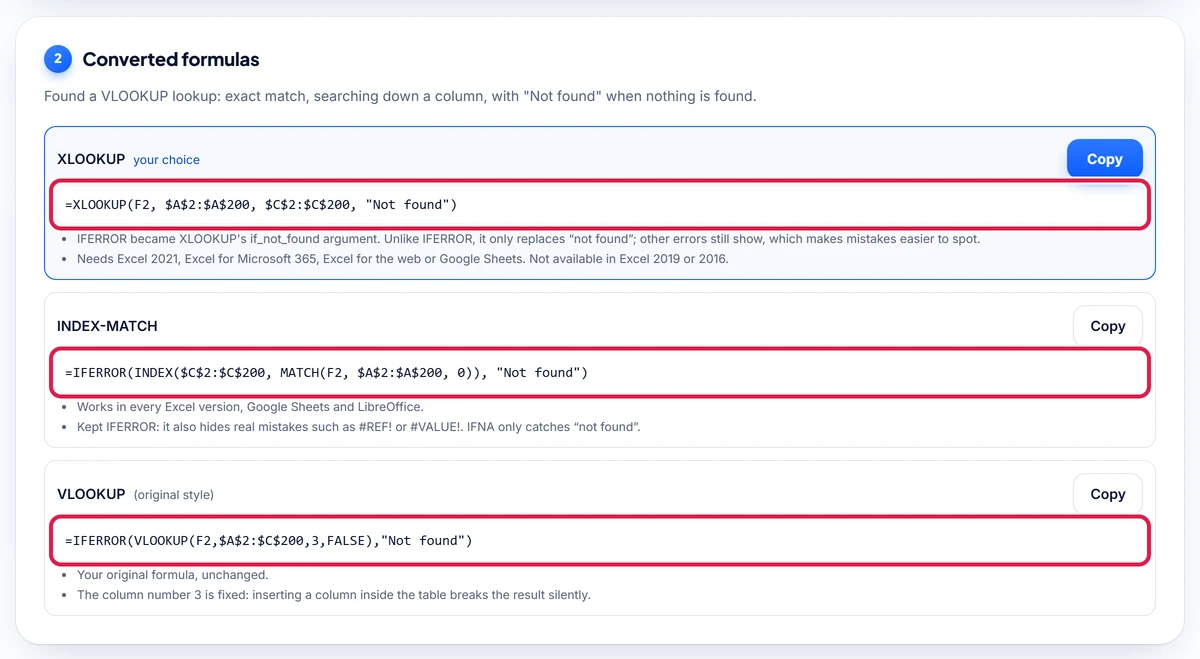
The generator shows all three conversions with the formula you entered first. It also offers the comparison table as a CSV download.
Version support
XLOOKUP is available in Excel 365 and Excel 2021, and in Google Sheets. It is not available in Excel 2019 or earlier, so a workbook that uses it shows #NAME? there. The generator adds a note for this case.
INDEX/MATCH and VLOOKUP work in every version, including Excel 2019. If you share files with people on older installations, or with systems that read the formulas, INDEX/MATCH is the safe choice among the modern styles.
For Google Sheets, XLOOKUP, INDEX/MATCH and VLOOKUP all work. If you want to filter or group data instead of looking up single values, the Google Sheets QUERY function is a different tool for a different job.
Left lookups and approximate matches
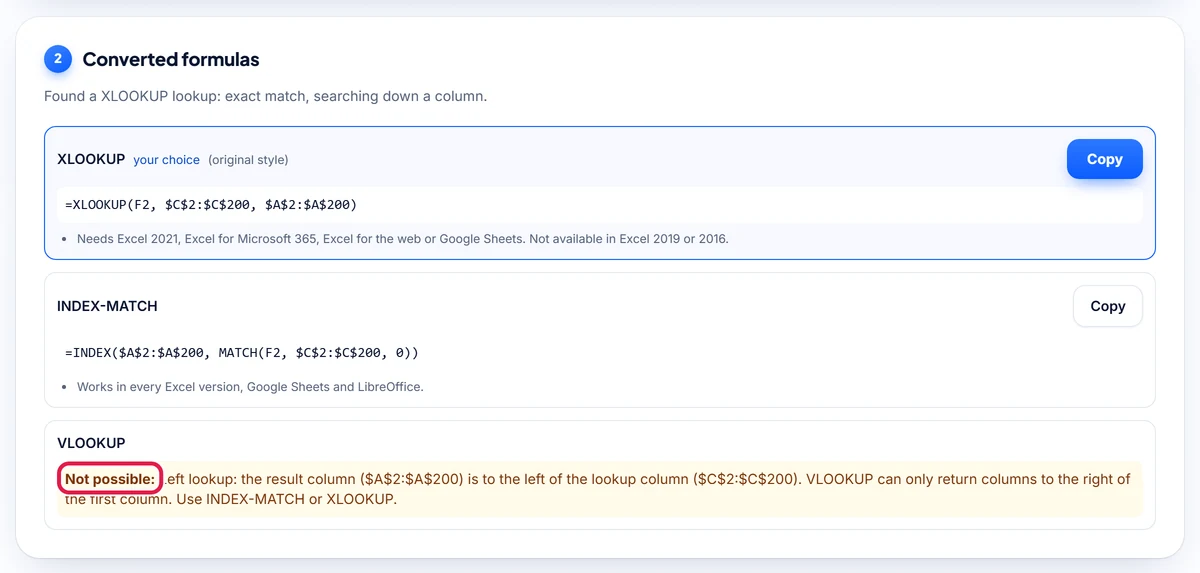
VLOOKUP can only return columns to the right of the lookup column. When the code is in column C and the value you need is in column A, the generator marks VLOOKUP as "Not possible" and gives the other two:
=XLOOKUP(F2,$C$2:$C$200,$A$2:$A$200)
=INDEX($A$2:$A$200,MATCH(F2,$C$2:$C$200,0))
The same task is described step by step in Look Up a Value to the Left in Excel.
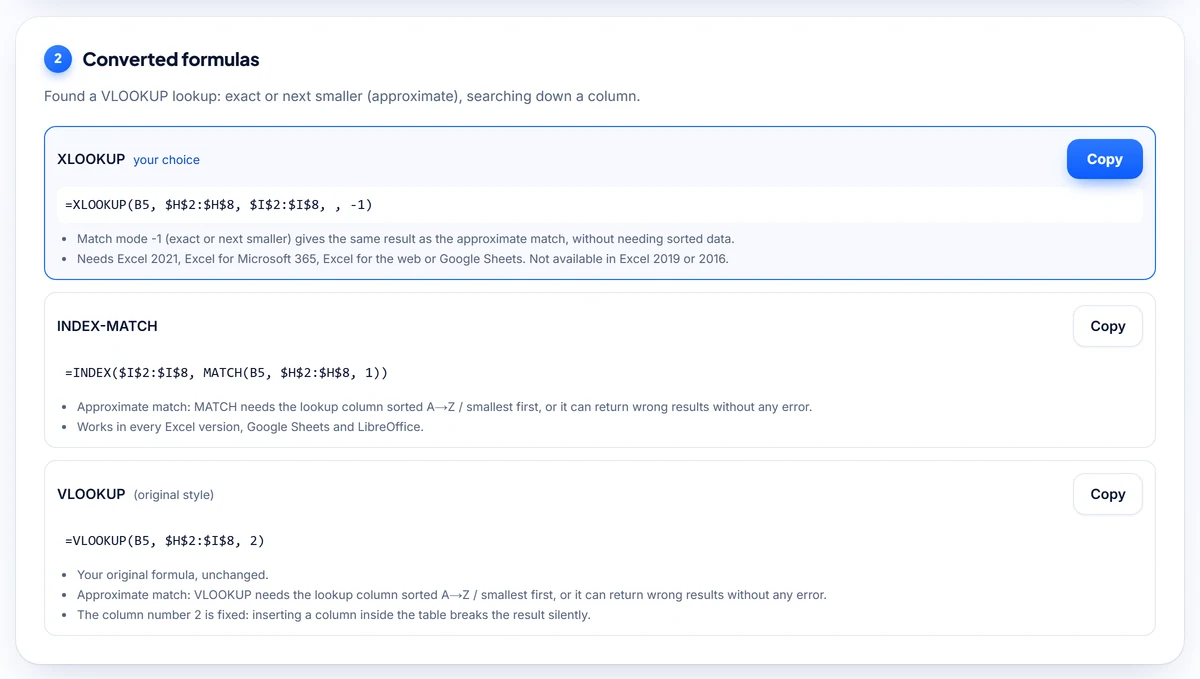
Approximate matches, such as a tax band, need care. XLOOKUP uses match mode -1 to return the next smaller value, and MATCH uses match type 1 for the same result. MATCH with 1 needs the bands sorted with the smallest first, and the generator warns about this. Unsorted bands give wrong results without any error message, so check the order before you trust the output.
Error handling: IFERROR and IFNA
VLOOKUP and INDEX/MATCH return #N/A when a value is missing, and the usual fix is to wrap the formula:
=IFERROR(VLOOKUP(F2,$A$2:$C$200,3,FALSE),"Not found")
=IFNA(INDEX($C$2:$C$200,MATCH(F2,$A$2:$A$200,0)),"Not found")
IFERROR hides every error, including a broken range, while IFNA hides only #N/A. XLOOKUP has a built-in fourth argument for the missing case, so no wrapper is needed:
=XLOOKUP(F2,$A$2:$A$200,$C$2:$C$200,"Not found")
When a lookup returns #N/A although the value seems to be there, the cause is usually spaces, text numbers or an approximate match. See Fix #N/A in Excel VLOOKUP: Causes and Fixes or paste the formula into the Excel Formula Debugger.
Which to choose
- Everyone on Excel 365, 2021 or Google Sheets: standardise on XLOOKUP. It reads best, handles left lookups and has a missing-value argument.
- Anyone on Excel 2019 or earlier: standardise on INDEX/MATCH.
- Existing sheets with simple VLOOKUPs to the right: leave them, and convert only when you change the table. Convert VLOOKUP to XLOOKUP Without Rewriting It explains the steps.
- Two-way lookups: the generator does not convert them, so build those by hand.
Check the limits of the tool as well: the formula you enter can be up to 8,192 characters, and a semicolon separator is kept as you wrote it. Test each converted formula on a copy of your data and compare it with the original result.
Microsoft documents the syntax of the new function on its support page XLOOKUP function. For the older pair, see Look up values with VLOOKUP, INDEX, or MATCH.
Decide, then test
Open the XLOOKUP vs INDEX-MATCH Generator, enter the lookup formula you use today and read the three versions. Pick the style that matches the oldest Excel version among the people who use the file, and download the comparison as CSV if you want to document the decision.