
Look Up a Value to the Left in Excel
Why VLOOKUP cannot return a column to the left, and the XLOOKUP and INDEX/MATCH formulas that can, with the Excel versions each one needs.
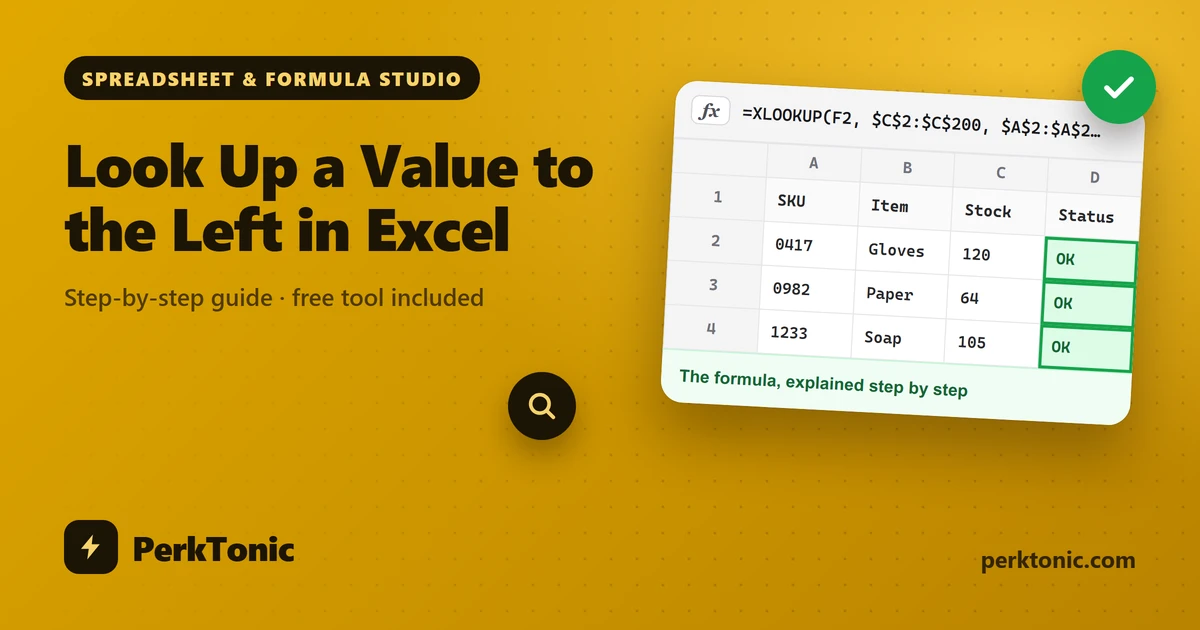
To look up a value to the left in Excel, use XLOOKUP or INDEX/MATCH, because VLOOKUP can only return columns to the right of the column it searches. If the code you search for is in column C and the name you need is in column A, the formula must search C and return A. The XLOOKUP vs INDEX-MATCH Generator writes both versions from your formula.
Why VLOOKUP cannot look left
VLOOKUP searches the first column of the table you give it, and the column number counts to the right from that first column. There is no negative column number and no way to return a column before the search column.
In a table where the codes are in column C and the names in column A, a VLOOKUP would have to start at C, and A is outside that table. The generator reflects this: for a left lookup it marks VLOOKUP as "Not possible" and shows only the two formulas that can do the job. Moving the columns is the other option, but that changes the layout of your data, which other formulas and people may depend on.
XLOOKUP version
XLOOKUP takes the search range and the return range as two separate arguments, so their order in the sheet does not matter:
=XLOOKUP(F2, $C$2:$C$200, $A$2:$A$200)
F2 holds the code you look for. The formula searches $C$2:$C$200 and returns the value from the same row of $A$2:$A$200. XLOOKUP uses an exact match unless you set another match mode.
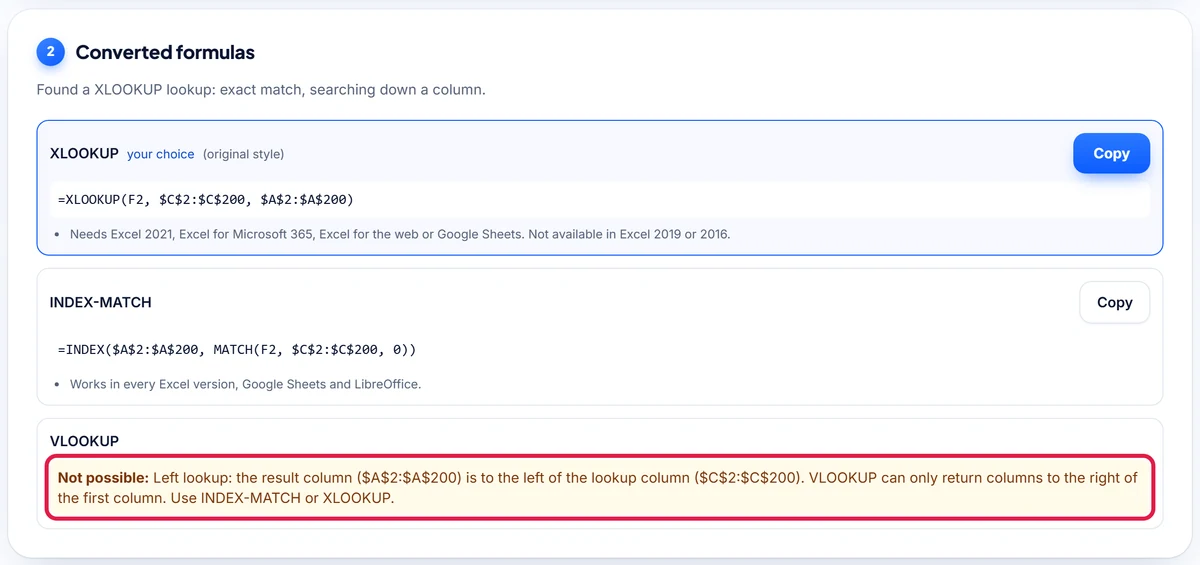
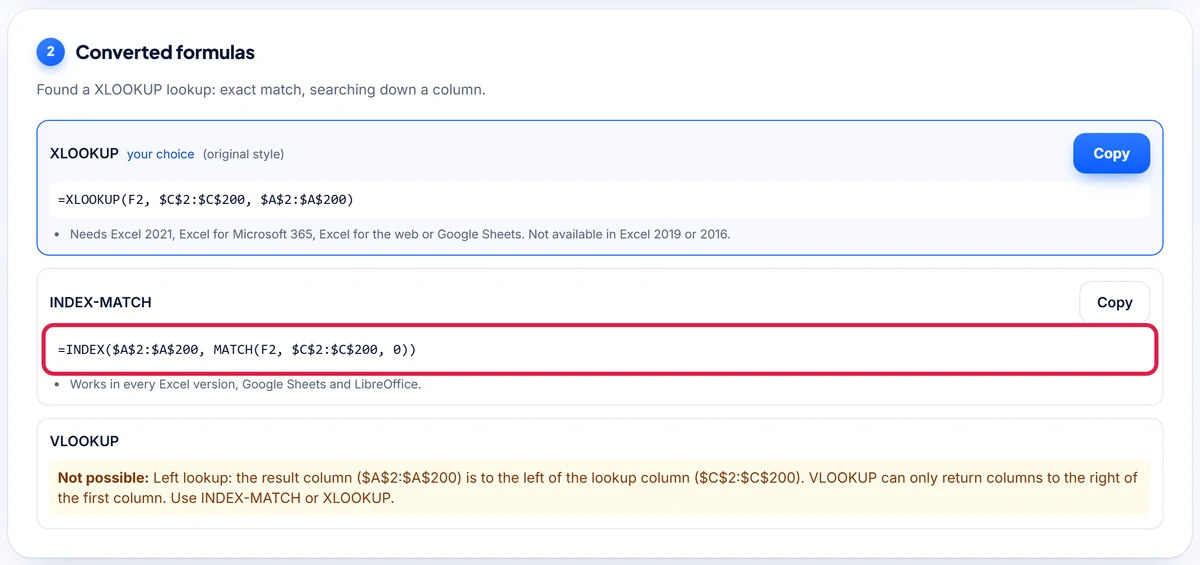
Paste this formula into the generator. The XLOOKUP card repeats your formula, the INDEX-MATCH card gives the equivalent, and the VLOOKUP card says Not possible and gives the reason.
INDEX-MATCH version
INDEX/MATCH splits the work. MATCH finds the position of the code in the search column, and INDEX returns the value at that position from the return column:
=INDEX($A$2:$A$200, MATCH(F2, $C$2:$C$200, 0))
MATCH(F2, $C$2:$C$200, 0) returns the row number within C2:C200 where F2 is found. The 0 asks for an exact match. INDEX then takes the value in that position from $A$2:$A$200.
Both ranges must start in the same row and have the same length. If the search range starts in row 2 and the return range in row 3, the result is one row off, and Excel does not report an error. A quick check is to compare the first and last row numbers in both ranges.
When the code is not found, both versions return #N/A. The causes, such as spaces or numbers stored as text, are the same as for VLOOKUP.
Which to use in older Excel
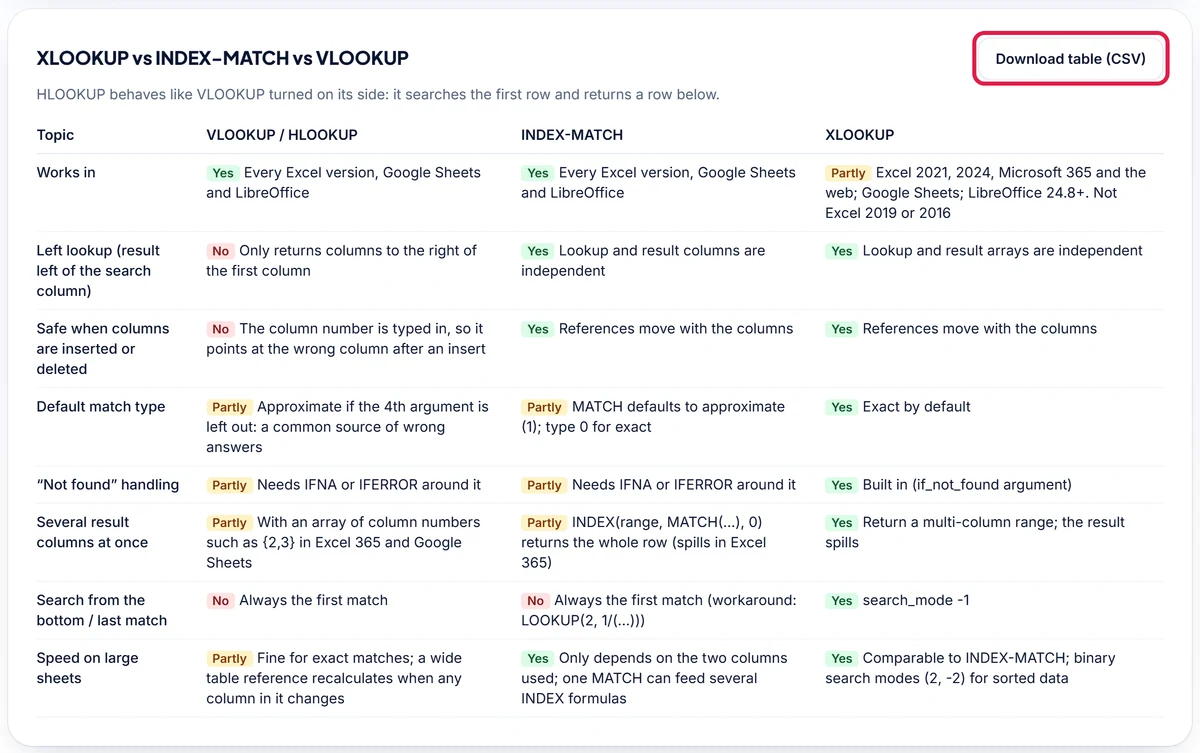
XLOOKUP is available in Excel 365 and Excel 2021, but not in Excel 2019 or earlier. INDEX/MATCH works in every version, so it is the safe choice when the file goes to people on older installations. If everybody has a version with XLOOKUP, the shorter formula is easier to read and to maintain. The comparison of all three styles is in XLOOKUP vs INDEX/MATCH: Which One to Use.
The generator can also save the comparison. The comparison table is downloadable as a CSV file, which is useful when you want to document the choice or share the formulas with a colleague.
If the lookup is approximate, for example to find a tax band, the match type and the sort order of the search column matter. XLOOKUP needs an explicit match mode for that case, and INDEX/MATCH needs a 1 or -1 as the last argument of MATCH, with the search column sorted.
Microsoft describes the syntax on its support pages. For the new function, see XLOOKUP function. For the older pair, see Look up values with VLOOKUP, INDEX, or MATCH.
Do it with your own data
Open the XLOOKUP vs INDEX-MATCH Generator and paste your lookup with the ranges you actually use. Copy the version that fits your Excel, test it on a copy of your data, and compare one result by hand.