
Do a VLOOKUP in pandas With a Left Merge
How a VLOOKUP becomes a left merge in pandas or a LEFT JOIN in SQL, how a nested IF becomes np.select, and why unmatched rows stay empty like #N/A.
The pandas equivalent of a VLOOKUP is a left merge: every row of your main table is kept, and the matching columns of the lookup table are added. The Formula to SQL & pandas Converter turns the Excel formula into a LEFT JOIN or a merge, and a nested IF into np.select. This guide shows both conversions and where they differ from Excel.
A VLOOKUP is a left merge
Take the formula =VLOOKUP(B2,Products!A:C,3,FALSE), where column B of the orders holds a product code and the third column of the Products sheet holds the price. In SQL the same lookup is a LEFT JOIN between the two tables. For SQLite, with the tables orders(order_id, product_code) and products(code, name, price), the converter wrote this:
SELECT o.*, p.price AS lookup_value
FROM orders AS o
LEFT JOIN products AS p
  ON p.code = o.product_code;
LEFT matters. The orders table is the main table, and a LEFT JOIN keeps every order, even when the product code is missing from Products. For those rows the price column is NULL, which corresponds to the #N/A that VLOOKUP returns.
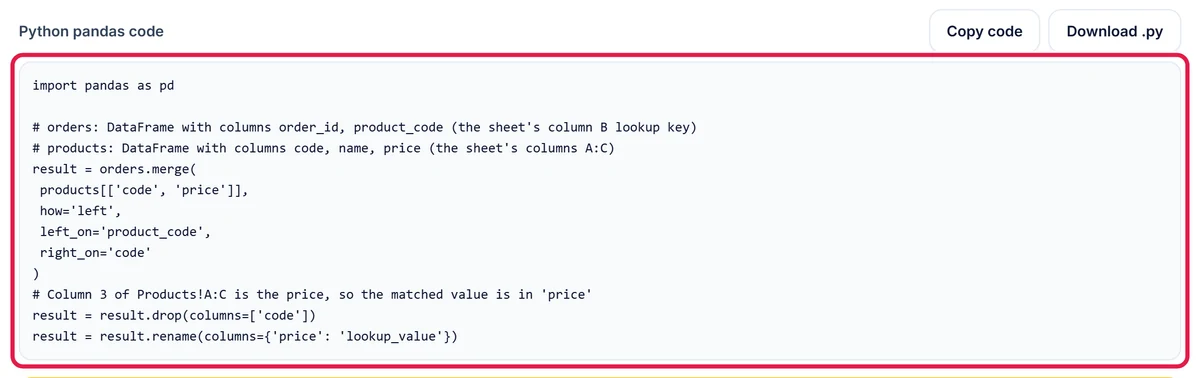
In pandas the same join is DataFrame.merge with how="left". For the same two tables, the pandas target returned this, shown in the picture below:
import pandas as pd

result = orders.merge(
    products[['code', 'price']],
    how='left',
    left_on='product_code',
    right_on='code'
)
result = result.drop(columns=['code'])
result = result.rename(columns={'price': 'lookup_value'})
The answer comes from an AI, so the wording and the helper columns can differ from one run to the next. Adapt the table and column names to your data. The official description of the arguments is in the pandas documentation for DataFrame.merge.
Steps with the converter
- Open the Formula to SQL & pandas Converter.
- Paste the Excel formula into Formula or description, for example
=VLOOKUP(B2,Products!A:C,3,FALSE). - In Table and columns, describe your tables with their types, for example
orders(order_id int, product_code text)andproducts(code text, name text, price numeric). This is optional, but without it the tool has to invent names. - Under Convert to, choose PostgreSQL, MySQL, SQLite, SQL Server (T-SQL) or Python pandas, and press Convert.
- Read the result and check the table and column names against yours.
The result for SQLite contains the LEFT JOIN, and the result for pandas contains the merge with the imports it needs. Paste it into a copy of your notebook or script, and compare a few rows with the Excel result before you rely on it.
Pressing Convert sends the formula and the table description to our server and to the AI provider, and the tool allows 10 AI requests per 10 minutes. The tool never runs the code and never connects to a database.
Nested IF ladders with np.select
A nested IF that assigns a grade is another formula that people convert:
=IF(C2>=90,"A",IF(C2>=75,"B",IF(C2>=60,"C","F")))
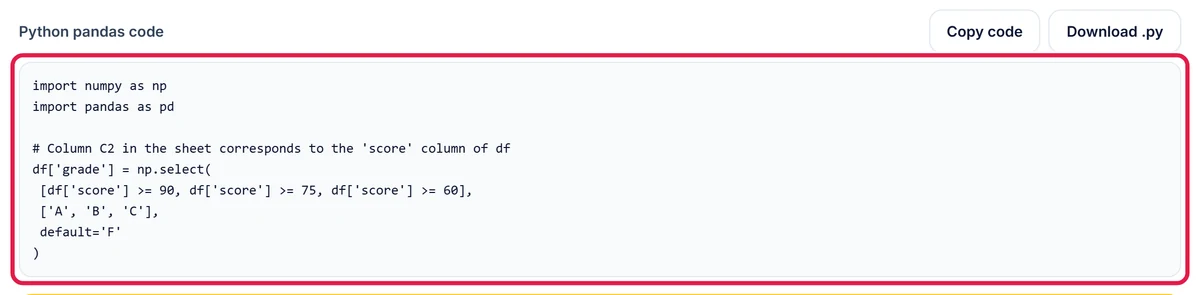
For pandas the converter returns a call to np.select, with the numpy and pandas imports at the top. Written by hand, it has this shape:
import numpy as np
import pandas as pd

conditions = [df["score"] >= 90, df["score"] >= 75, df["score"] >= 60]
choices = ["A", "B", "C"]
df["grade"] = np.select(conditions, choices, default="F")
np.select checks the conditions in order and uses the choice of the first one that is true, which is the same order as the nested IF. The last argument, default="F", is the value of the innermost else branch. The function is described in the NumPy documentation for numpy.select.
Keep the conditions in the same order as the IF ladder. If the order is reversed, a score of 95 would be matched by the first condition that is true, which can give a different grade.
Why rows stay NULL like #N/A
Rows with no match are kept, and their new columns are empty: NULL in SQL, NaN in pandas. The same rows would show #N/A in Excel, so you can use the empty values as a check for missing products.
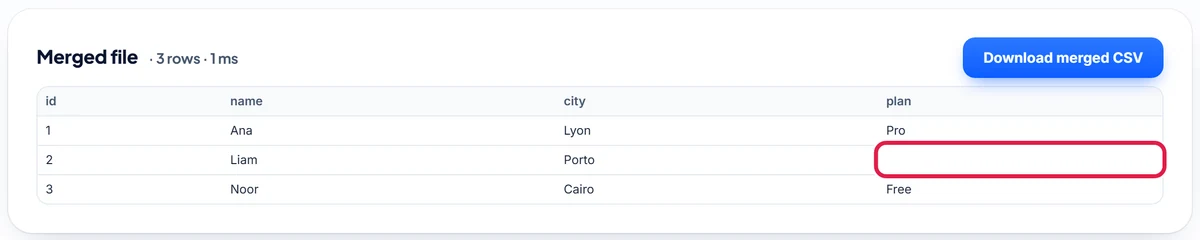
When many rows stay empty although the codes look right, look at the keys. A code that is a number in one table and text in the other does not match, and a trailing space does the same. This is the pandas side of the problems described in Fix #N/A in Excel VLOOKUP: Causes and Fixes.
One difference from Excel needs attention: VLOOKUP returns the first match, but a merge returns a row for every match. If the Products table has the same code twice, each order with that code appears twice in the result. Remove duplicate keys from the lookup table first, for example with drop_duplicates on the code column.
To try the join without code, paste two files into the Compare Two CSV Files tool, choose Merge (join) and the join type Left (every row of A, like VLOOKUP). A related conversion is explained in Convert an Excel SUMIFS Formula to SQL GROUP BY.
Limits: code is not run
The converter does not run the Python and does not check its syntax. It lists the imports the code needs and checks the brackets. Run the code yourself on a sample of your data, look at the shape of the result, and compare a few values with Excel.
Do it with your own data
Open the Formula to SQL & pandas Converter, paste your VLOOKUP or nested IF and choose pandas. Run the result on a small sample, count the empty rows in the new column, and check whether any key is duplicated in the lookup table.