
Excel Functions That Do Not Exist in Google Sheets
Which Excel functions are missing in Google Sheets or LibreOffice, the workarounds the converter suggests, and the LibreOffice versions you need.
A function that exists in one spreadsheet app can be missing in another, and a formula that uses it then returns an error after you move the workbook. The main Excel functions not in Google Sheets are AGGREGATE and TEXTBEFORE, and Excel itself has no QUERY. The Excel to Google Sheets Formula Converter warns you about these cases and suggests a workaround, so you can find them before the move.
Functions with no equivalent
The converter's dictionary has these gaps:
| Function | Missing in | Suggested workaround |
|---|---|---|
| AGGREGATE | Google Sheets | SUBTOTAL |
| TEXTBEFORE | Google Sheets | REGEXEXTRACT |
| QUERY | Excel | FILTER and SORT |
| LAMBDA | LibreOffice | rewrite with ordinary functions |
These are the gaps that the tool flags. Other differences exist, and a formula can break for reasons that are not in this table, such as a function that is available only in a newer version of the app. Read every warning in the result, and test the converted formula on a copy of your data.
The suggested workarounds
A workaround is not an identical replacement. Each one covers the common use and differs at the edges.
AGGREGATE to SUBTOTAL. AGGREGATE can ignore error values and hidden rows through its options. SUBTOTAL handles hidden rows but not errors. If the range contains errors, wrap the values with IFERROR or clean the data first.
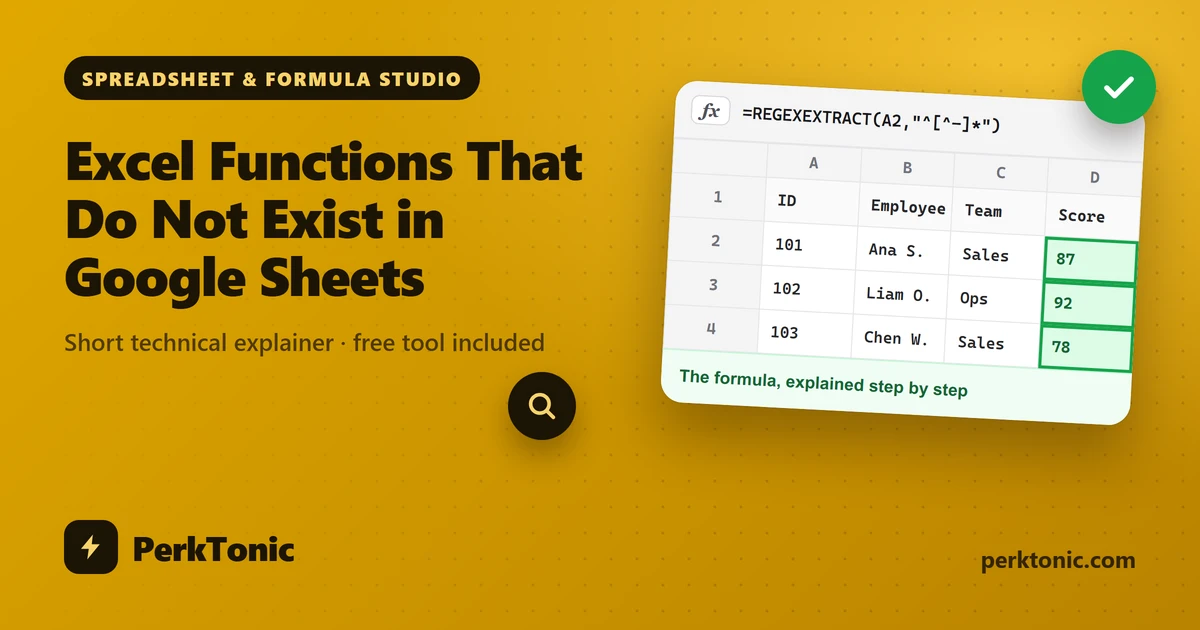
TEXTBEFORE to REGEXEXTRACT. TEXTBEFORE returns the text before a delimiter. In Sheets, the same result for the first hyphen can be written as:
=REGEXEXTRACT(A2,"^[^-]*")

The edge cases differ. TEXTBEFORE reports #N/A when the delimiter is missing, while this pattern returns the whole text. Test a value without the delimiter.
QUERY to FILTER and SORT. Excel has no QUERY. A query that filters rows and sorts them can be rebuilt with FILTER and SORT, but a query that groups and sums needs more, for example a PivotTable. The QUERY side is explained in Google Sheets QUERY: Group By and Sum a Column, and the Google Sheets QUERY Builder writes the formula for Sheets.
LAMBDA has no workaround in LibreOffice. A formula that defines its own function must be rewritten with ordinary functions, or kept in Excel or Sheets.
LibreOffice version requirements
LibreOffice Calc has added many functions over time, so the version matters as much as the app.
- XLOOKUP, FILTER and LET need LibreOffice 24.8 or later.
- TEXTSPLIT and VSTACK need LibreOffice 25.8.
A formula that uses one of these shows an error in an older LibreOffice, even though the formula is correct. Check the version in Help > About before you decide that a formula is wrong. If you cannot update, the older style, such as INDEX/MATCH instead of XLOOKUP, works in all versions.
Sheet reference syntax differences
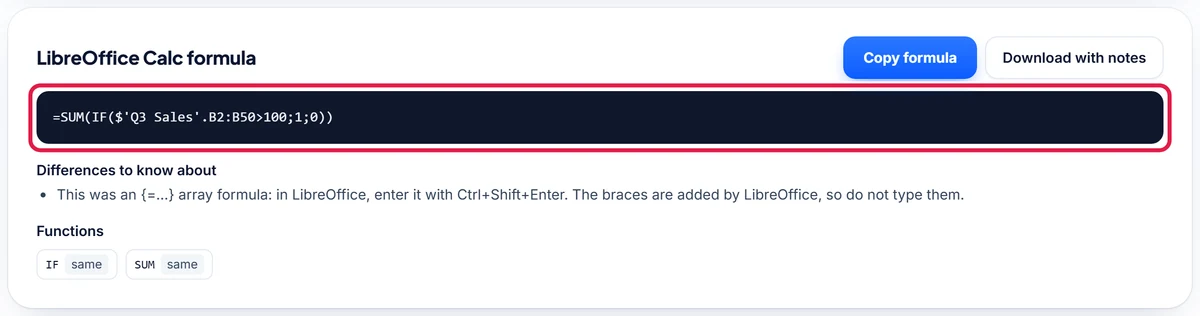
References to another sheet are written differently. Excel and Google Sheets use an exclamation mark: 'Q3 Sales'!B2:B50. LibreOffice uses a dot: $'Q3 Sales'.B2:B50. A formula that is copied between the apps without conversion fails on every cross-sheet reference.
Take the array formula {=SUM(IF('Q3 Sales'!B2:B50>100,1,0))}. Converted from Excel to LibreOffice, the sheet reference changes to the dot form with the dollar sign, and the commas between the arguments become semicolons. A note also reminds you that an array formula is entered in LibreOffice with Ctrl+Shift+Enter, and that the braces are added by the program.
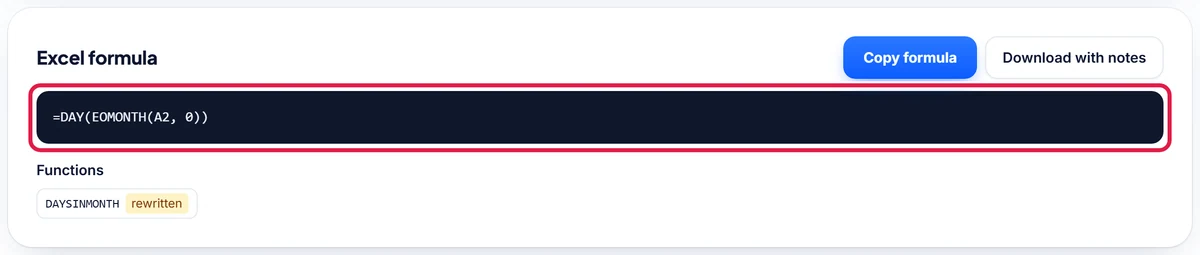
The conversion also works in the other direction. LibreOffice has DAYSINMONTH, which Excel does not. Converted from LibreOffice to Excel, =DAYSINMONTH(A2) becomes =DAY(EOMONTH(A2, 0)): EOMONTH returns the last day of the month, and DAY takes its day number.
For the general steps of a conversion, see Convert an Excel Formula to Google Sheets. The converter does not calculate results, so compare a few values in both apps.
Google lists the Sheets functions in the Google Sheets function list. For LibreOffice, the Help page Functions by Category lists what is available.
What to do next
Open the Excel to Google Sheets Formula Converter, paste a formula from your workbook and choose the target app. Read every warning, then test the converted formula on a copy of your data before you move the whole file.